
M2 Download Instructions for Android, iPhone and Desktop
Table of Contents
Supported Devices for M2 Download
Access Across Multiple Platforms
M2 supports Android smartphones, Apple iPhone devices, Windows computers, and macOS computers. Members can create a shortcut or install the web application for faster access without searching for the website each time.
Before You Begin
Open the official platform in a supported browser before following the installation instructions. You may begin from Home (/en – Internal Link). The official website is available at m2mys.com.
Android Download Steps
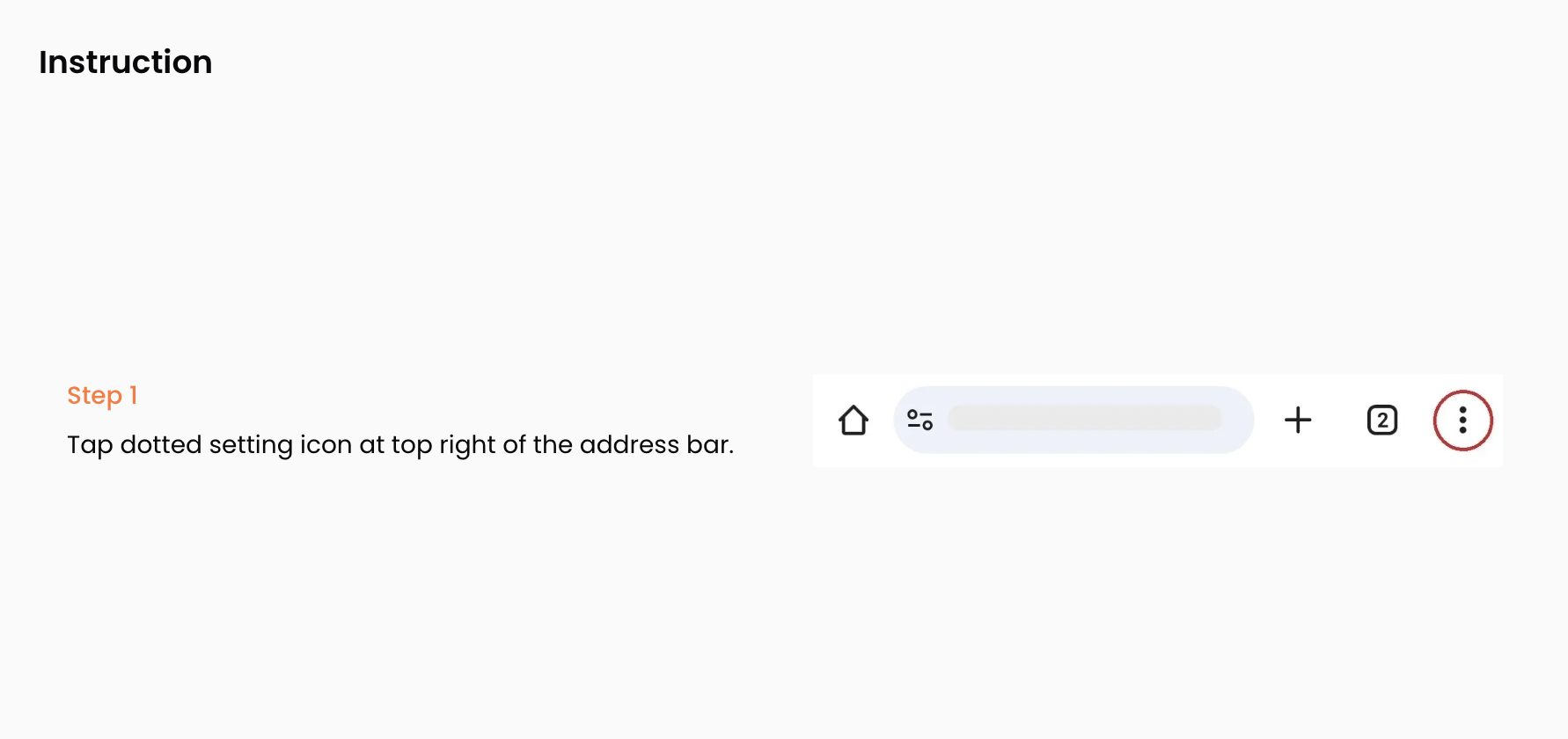
Step 1 – Open the Browser Menu
Visit Download (/en/download – Internal Link), open the platform in Chrome or another supported browser, then tap the three-dot menu located at the upper-right corner of the address bar.
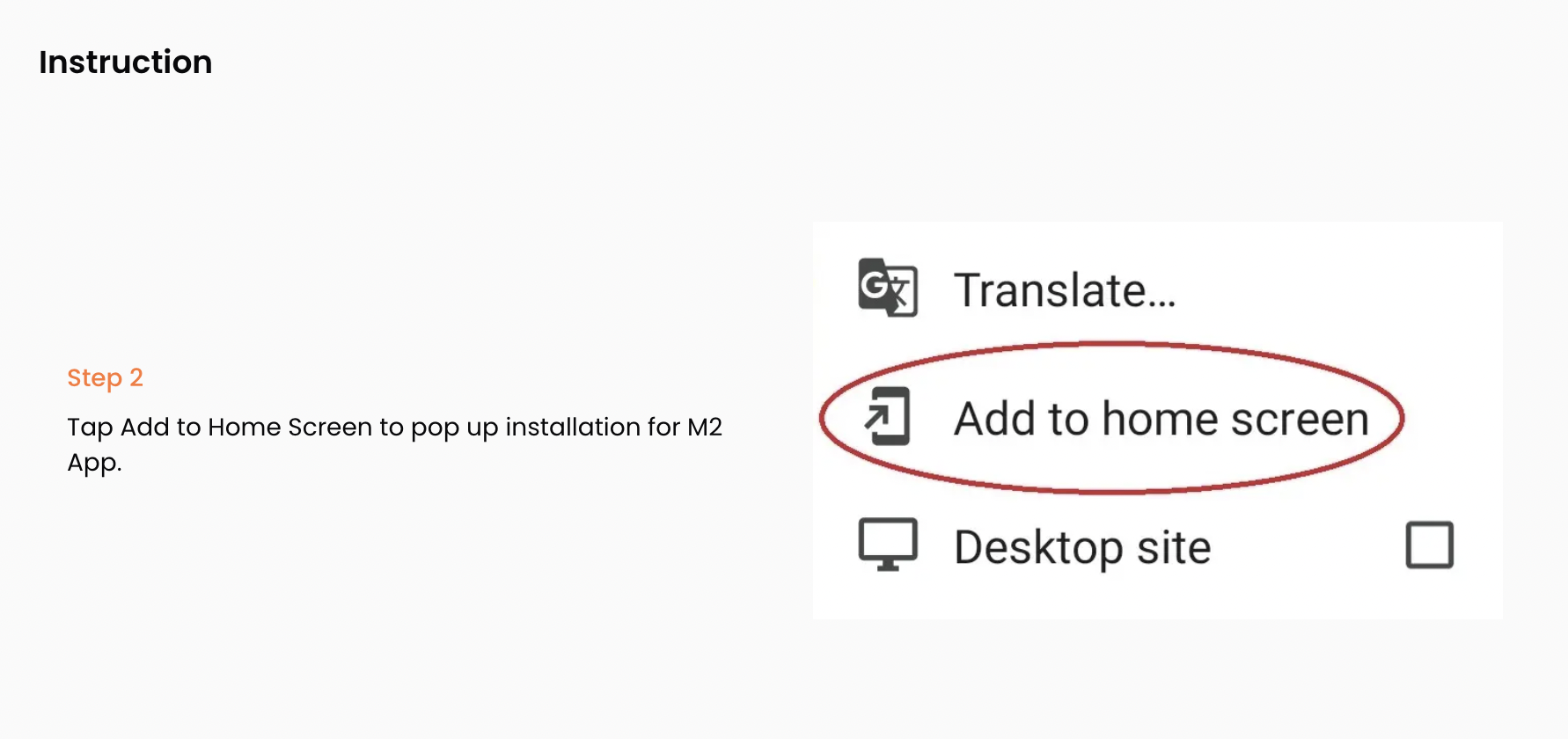
Step 2 – Select Add to Home Screen
Tap Add to Home Screen from the browser menu to open the installation prompt for the M2 application shortcut.
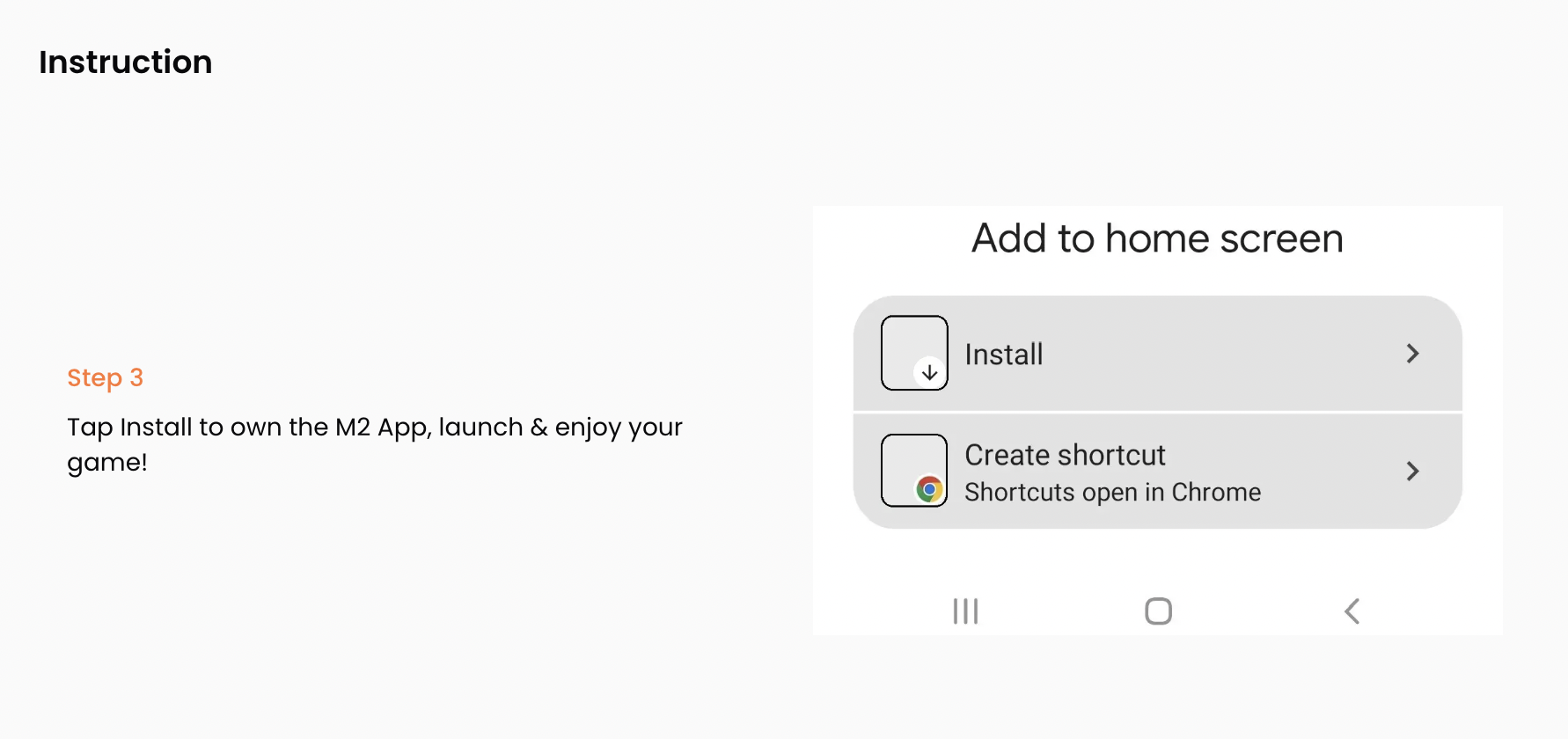
Step 3 – Install the Shortcut
Tap Install to complete the process. The M2 application shortcut will appear on the Android home screen for quick access.
iPhone (iOS) Download Steps
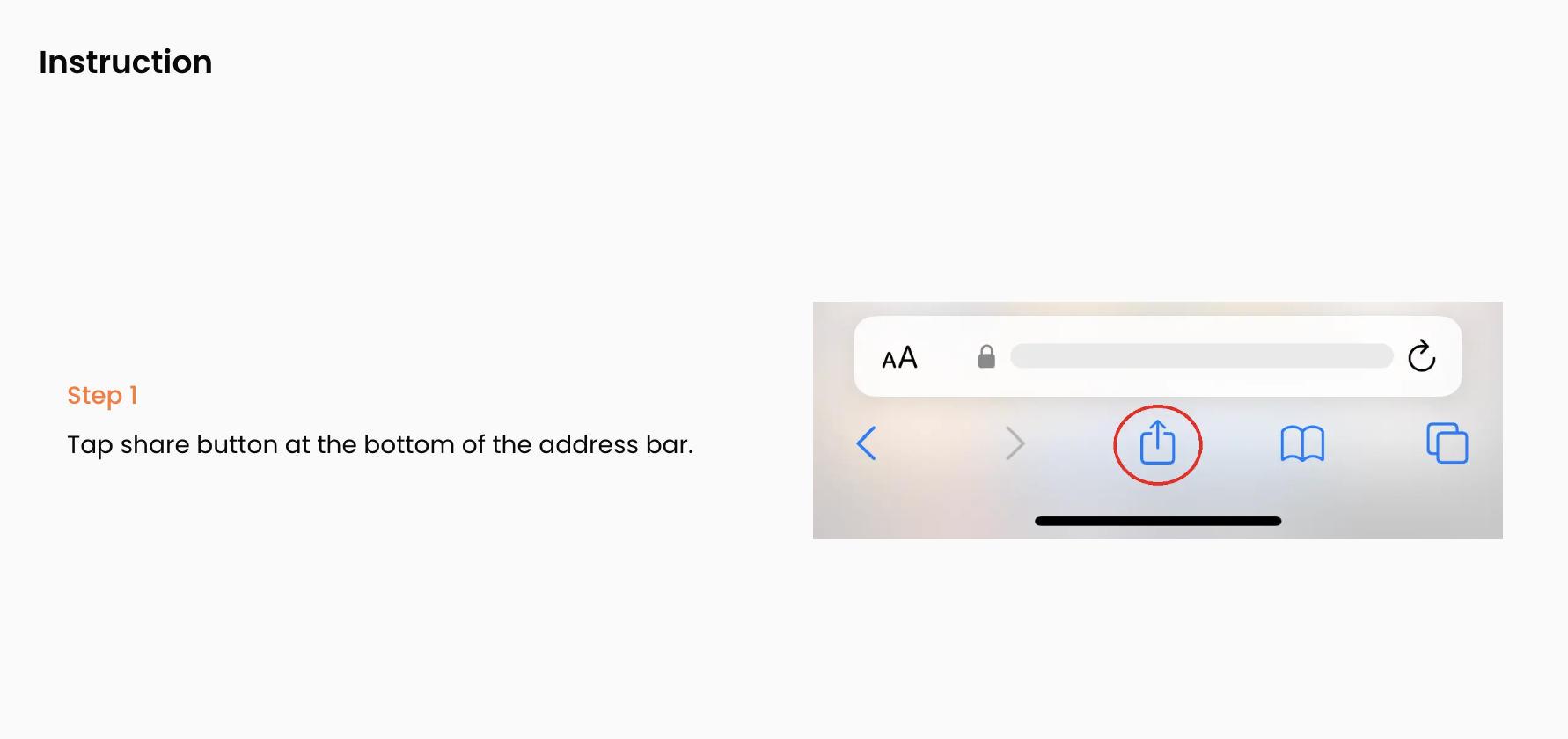
Step 1 – Tap the Share Button
Open the platform in Safari, then tap the Share button located at the bottom of the browser screen.
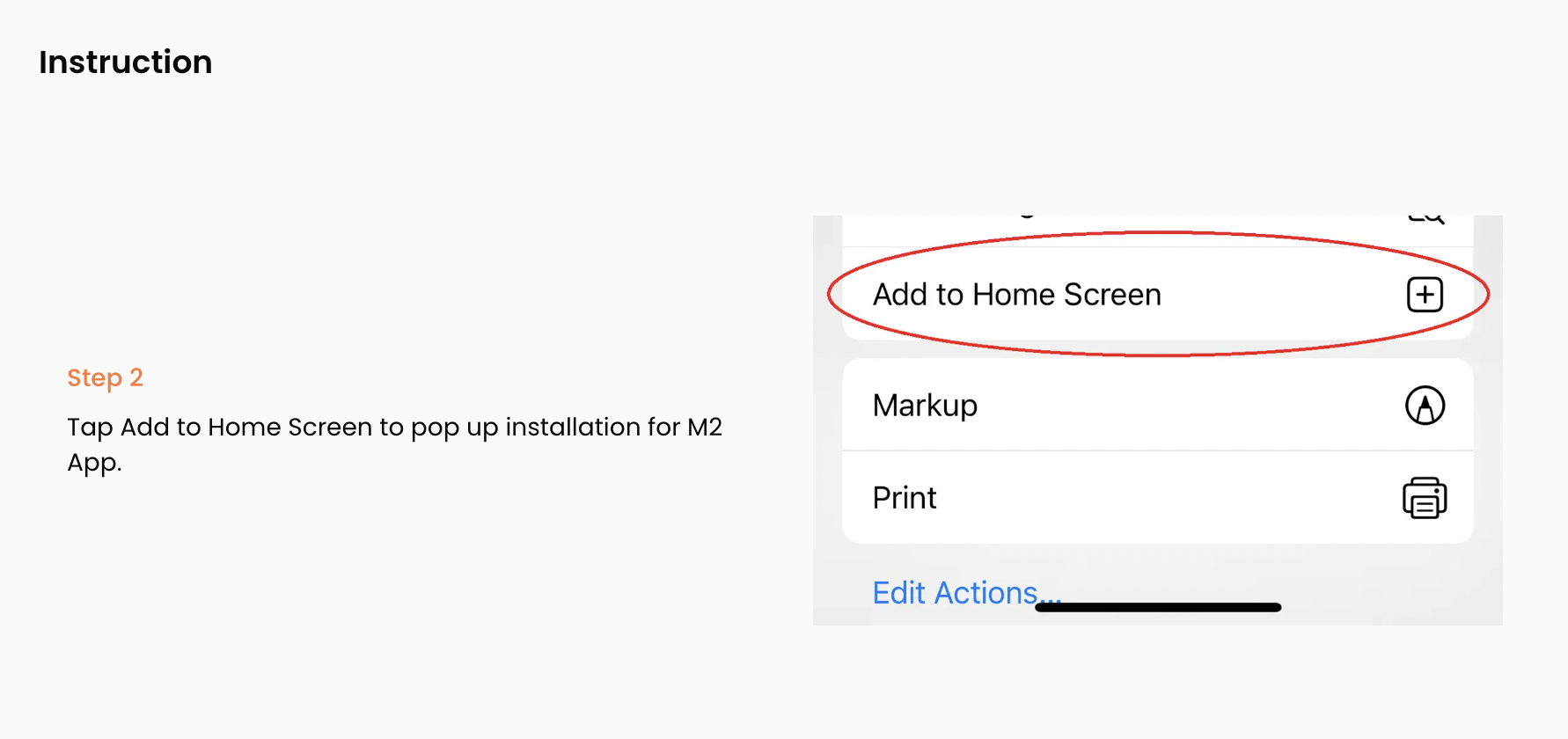
Step 2 – Choose Add to Home Screen
Scroll through the available actions and tap Add to Home Screen to prepare the shortcut installation.
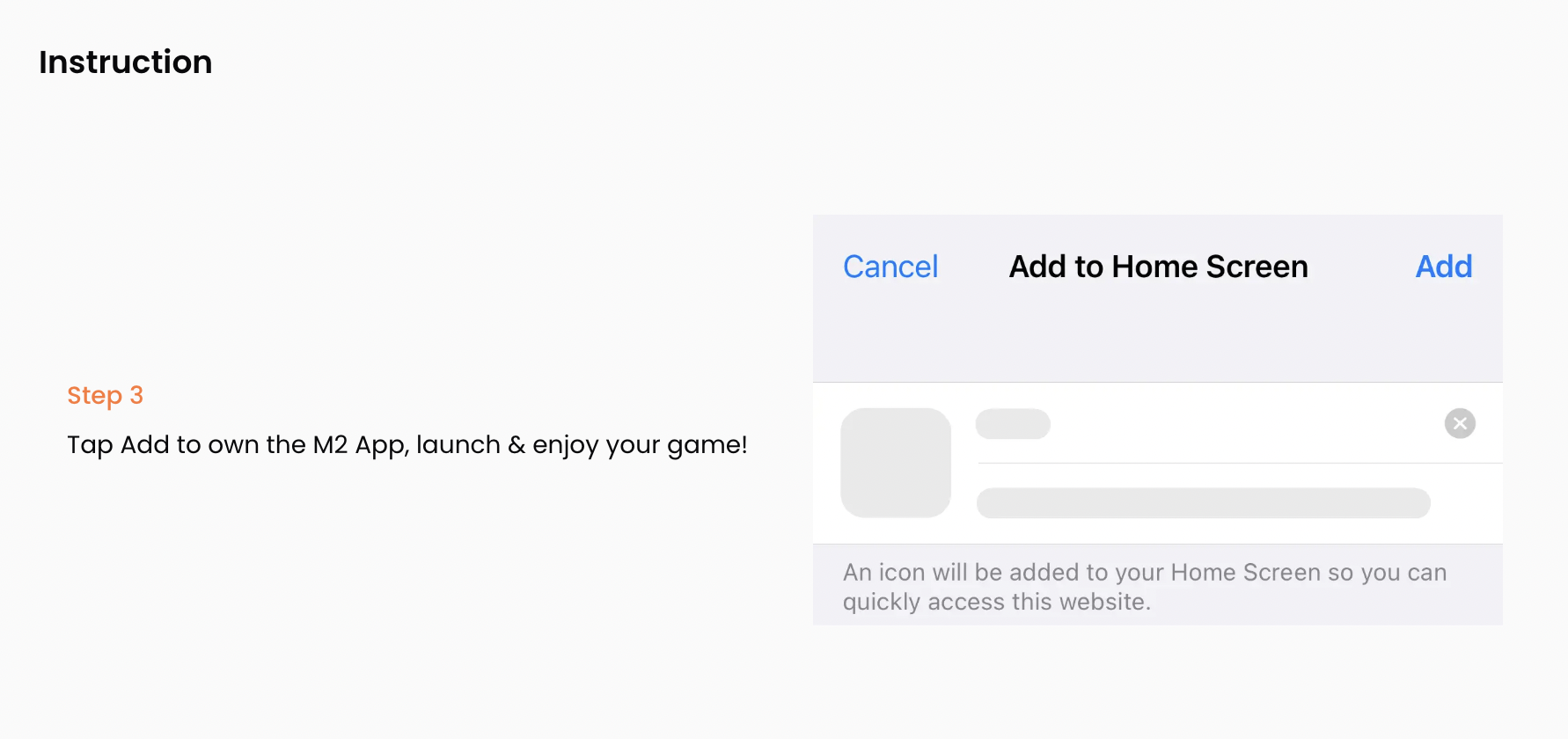
Step 3 – Confirm Installation
Tap Add to place the M2 shortcut on the iPhone Home Screen for convenient future access.
Desktop (Windows & macOS) Download Steps
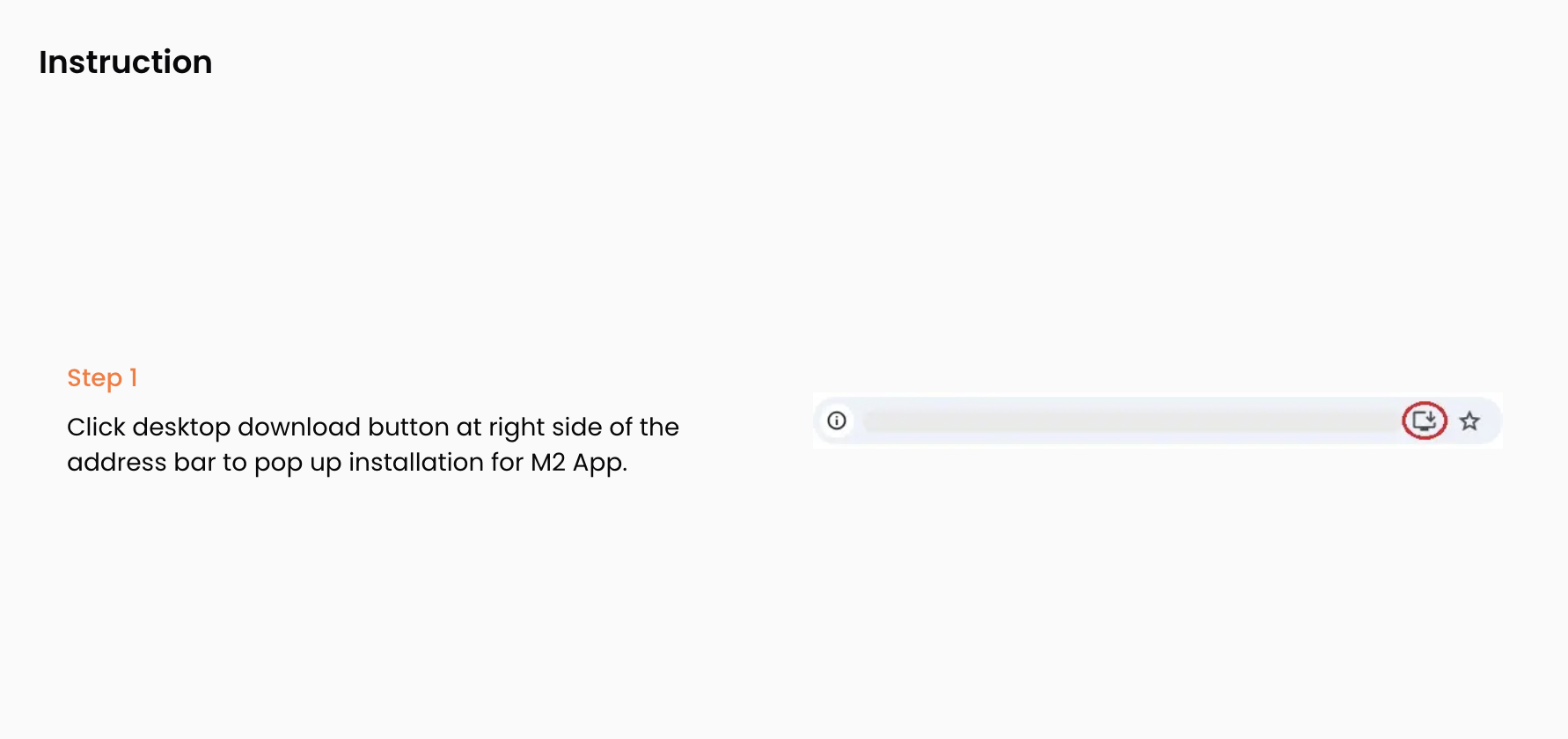
Step 1 – Click the Install Icon
Open the platform in a supported desktop browser and click the installation icon displayed on the right side of the address bar when it becomes available.
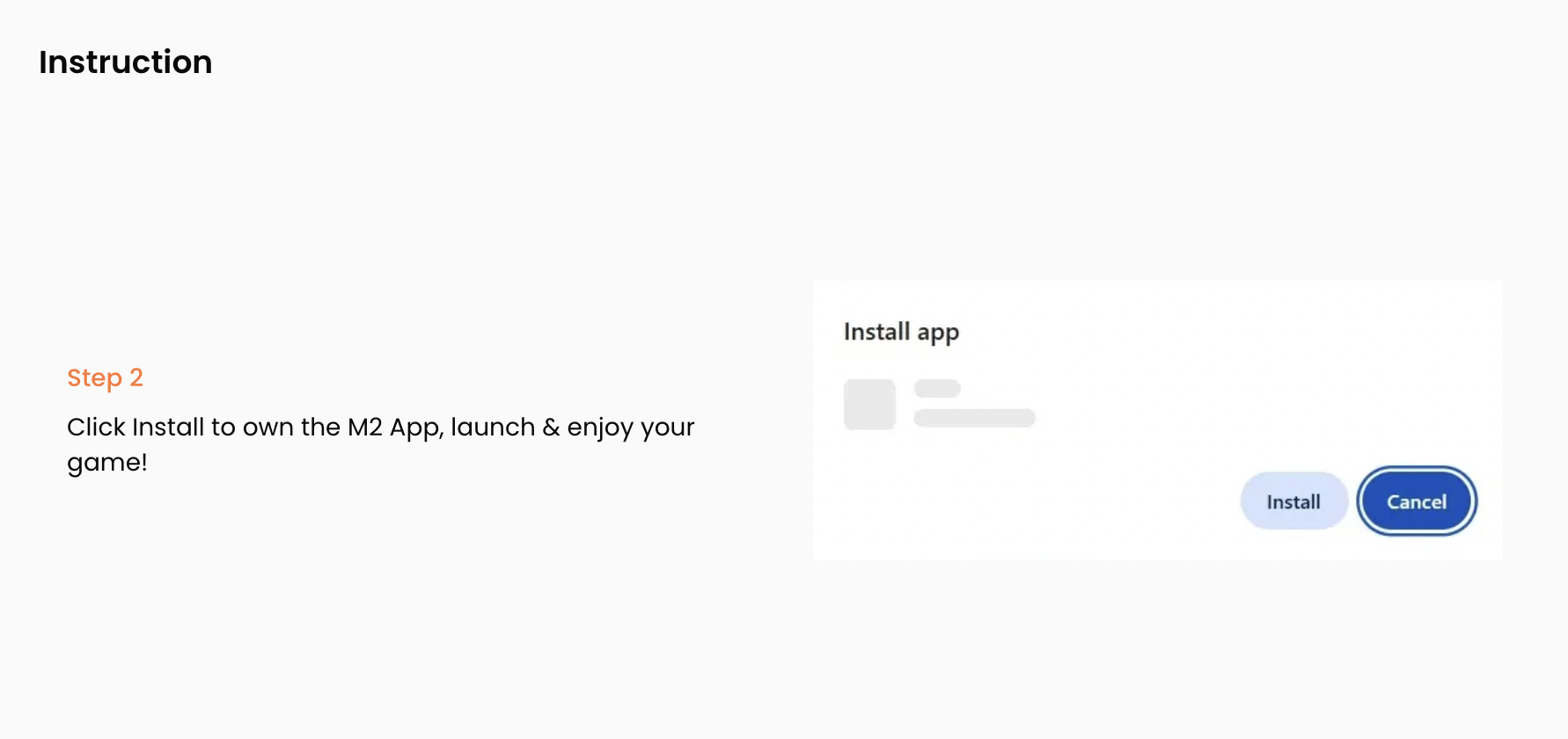
Step 2 – Confirm Installation
Click Install to create the desktop application shortcut. After installation is complete, launch the M2 application directly from your desktop or application menu.
Download Tips
Keep Your Browser Updated
Using the latest version of Chrome, Edge, Safari, or another supported browser helps ensure that installation options such as Add to Home Screen or Install are available.
Access Other Member Services
After completing installation, members can continue to Login (/en/login – Internal Link), Register (/en/register – Internal Link), Games (/en/games – Internal Link), Deposit (/en/deposit – Internal Link), Withdrawal (/en/withdrawal – Internal Link), About Us (/en/about-us – Internal Link), and Terms and Conditions (/en/terms-and-conditions – Internal Link).
Frequently Asked Questions
Do I need to download an APK file?
No. Most supported browsers allow members to install the platform by creating a shortcut or web application directly from the browser.
Can I install the platform on iPhone?
Yes. Safari supports adding the platform to the Home Screen through the Share menu.
Is Desktop installation supported?
Yes. Supported desktop browsers on Windows and macOS provide an Install option when available.
Will installing the shortcut affect my account?
No. Installing a shortcut only provides faster access to the platform and does not change your account information or settings.