

M2 Withdrawal for Secure Bank Account Transfers
Table of Contents
M2 Withdrawal Overview
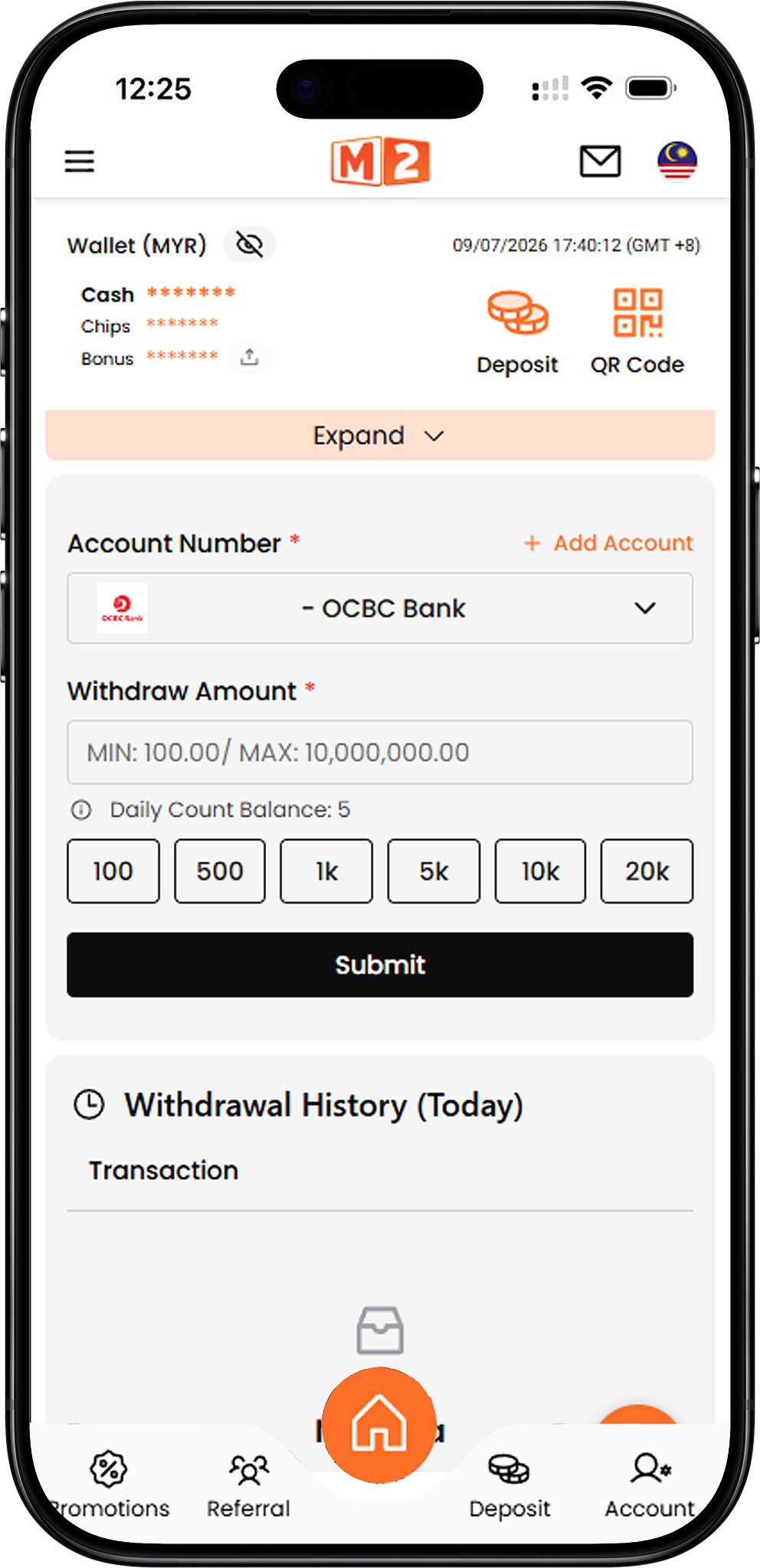
Withdraw Funds Securely
M2 allows members to withdraw available account balances to a registered bank account through a secure withdrawal process. Members can review wallet balances, choose a registered account, and submit withdrawal requests from their member account.
Convenient Account Access
Members can sign in through Login (/en/login – Internal Link) before accessing the withdrawal page. You may also return to Home (/en – Internal Link). The official platform is available at m2mys.com.
Bank Account Requirements
Select a Registered Bank Account
Members should choose an existing registered bank account before submitting a withdrawal request. If no bank account has been added, select the Add Account option and complete the required account information first.
Review Wallet Balance
Confirm that sufficient available balance is shown in the wallet before entering a withdrawal amount. Cash, chips, and bonus balances may be displayed separately depending on account status.
M2 Withdrawal Steps
Step 1 – Open the Withdrawal Page
After signing in, open Withdrawal (/en/withdrawal – Internal Link) from the Funds or Wallet section of your member account.
Step 2 – Select Your Bank Account
Choose the preferred registered bank account from the Account Number list. If required, use the Add Account option to register a supported bank account before proceeding.
Step 3 – Enter the Withdrawal Amount
Enter the preferred withdrawal amount within the displayed minimum and maximum limits. Members may also select one of the preset amount buttons when available.
Step 4 – Submit Your Request
Review the selected account number and withdrawal amount before clicking Submit. The request will then be processed according to the platform’s transaction procedures.
Withdrawal Limits and History
Daily Withdrawal Limits
The withdrawal page displays the applicable minimum amount, maximum amount, and available daily withdrawal count. Members should review these limits before submitting each request.
Review Withdrawal History
Withdrawal History displays completed and pending withdrawal requests together with transaction dates, bank information, account numbers, amounts, and processing status. Members may also continue to Deposit (/en/deposit – Internal Link), Games (/en/games – Internal Link), Promotions (/en/promotions – Internal Link), and Rebate (/en/rebate – Internal Link) after completing account transactions.
Frequently Asked Questions
Do I need a registered bank account?
Yes. Members should register a bank account before submitting a withdrawal request.
Can I check my withdrawal history?
Yes. The Withdrawal History section displays transaction records together with processing status and account details.
Are there withdrawal limits?
Yes. Minimum and maximum withdrawal amounts, together with daily withdrawal limits, are displayed on the withdrawal page according to the selected account.
Where can I learn more about the platform?
Additional information is available through About Us (/en/about-us – Internal Link) and Terms and Conditions (/en/terms-and-conditions – Internal Link). New members can complete Register (/en/register – Internal Link) before using member account services.